
The Magic Workspace App is your main toolIf your client has concerns about it, talk to your Account Lead first. Ask about workarounds before you switch to the web Workspace. For the app, see Clocking In and Out and Magic Workspace App Dashboard.
Creating an account in Magic Workspace
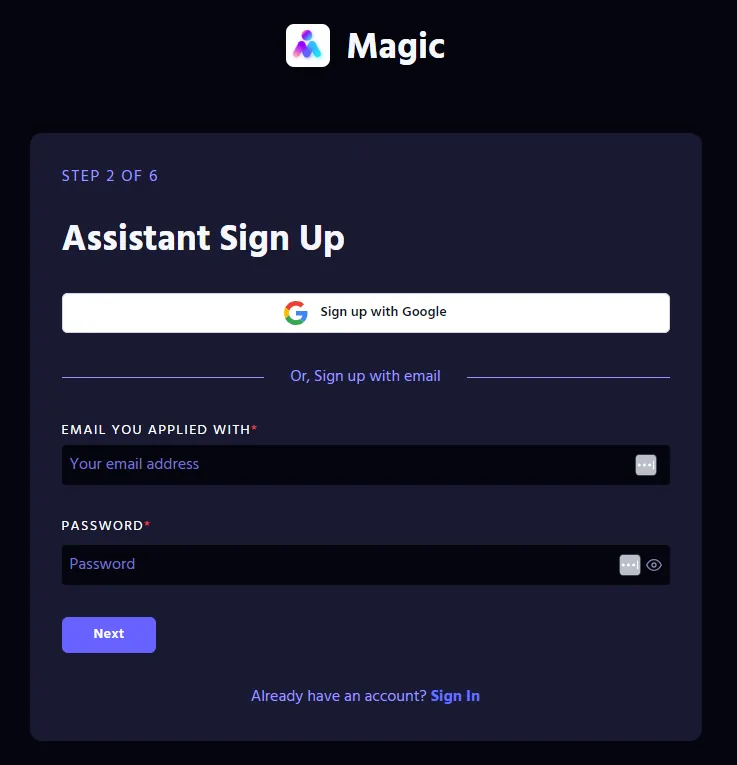
Go to the Workspace sign-up page, enter the required details, then click Create Account.
The email must be the same as your Messager login.
Your dashboard
After creating an account, your dashboard appears. Use the panel on the left to move between:
DashboardTeamsClientsEarningsSessionsMagic ToolsHelp Desk

Teams
After you sign in, a banner shows the active teams you’re part of. A team is a role you’re assigned to. If you work with two different clients, you’ll see two active teams on your dashboard.

Clocking in and out

To begin or end a work session:
- Select your team on the Workspace Dashboard.
- Click Go Online to start your shift or Go Offline to end it. Do this each time you start or finish working.
You’ll also notice a few helpful features on your dashboard:

Your schedule
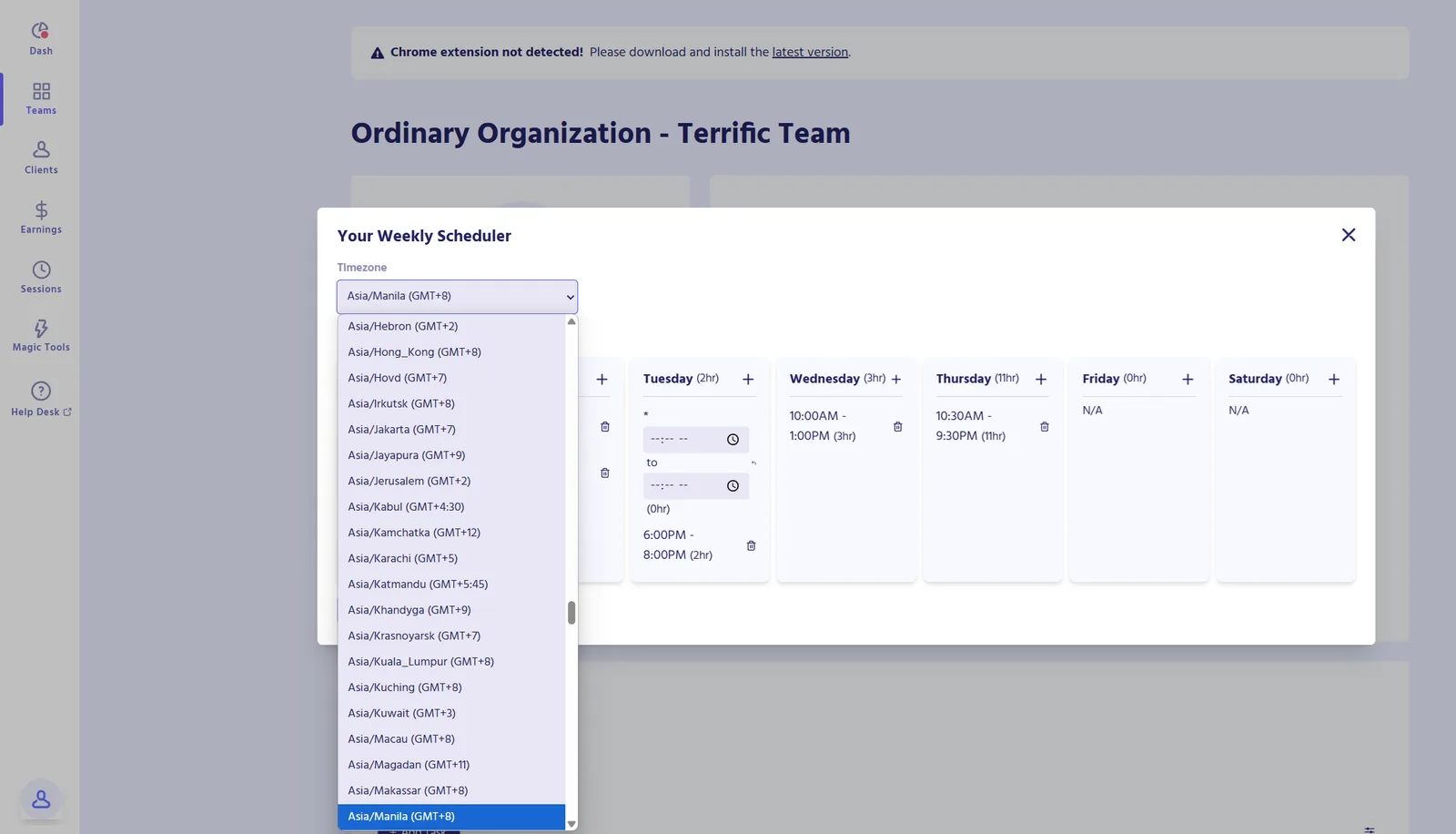
To set up your weekly schedule:
- Go to the Workspace Dashboard and select your team.
- Click the pencil icon to edit your schedule.
- Click Add New, enter your work hours using your computer’s time zone, then click Add Schedule.
- If your schedule stays the same, you only need to enter it once. You can edit it any time if it changes.
- Use the time zone dropdown to set your preferred time zone.
- Below the schedule, you’ll see your total weekly hours based on what you’ve added.
To update your schedule:
- Click the (+) button beside a day to add a shift.
- Click the trash icon to remove a shift.
- Click Save Changes to apply your updates.
Follow the schedule guidelines to avoid being automatically clocked out of the web Workspace after an hour.
Task overview

Adding tasks in Assistant Workspace is essential for documenting your work. To add a task:
- Click Add Task and enter your task for the day.
- Press Enter to save the new task, or Escape to cancel.
- Add Date Received, Due Date, and set the task’s Priority.
Make sure to follow the task naming conventions.
Subtasks and updates
You can also add subtasks, an overview, task updates, and next actions to your main task. These details keep tasks clear, track progress, and help you prioritize your next actions.
- On your main task, click ••• and choose View.
- In the pop-up window, add the task’s subtasks. Press Enter to save a subtask, or Escape to cancel.
- Add the task’s overview, notable updates, and next actions, then click Save.

Adding subtasks
Task status
You can change the status of your task, including marking it as complete when it’s finished.

Filtering by tasks and reports
The Tasks filter shows the tasks added by the client or assistants, with details for each task. Filter to see the data you need per day or per status.
The Report filter shows the generated reports. Filter by date range, created by, and created at.
Task status definitions
Recurring tasks
You can mark a task as recurring.
Sessions
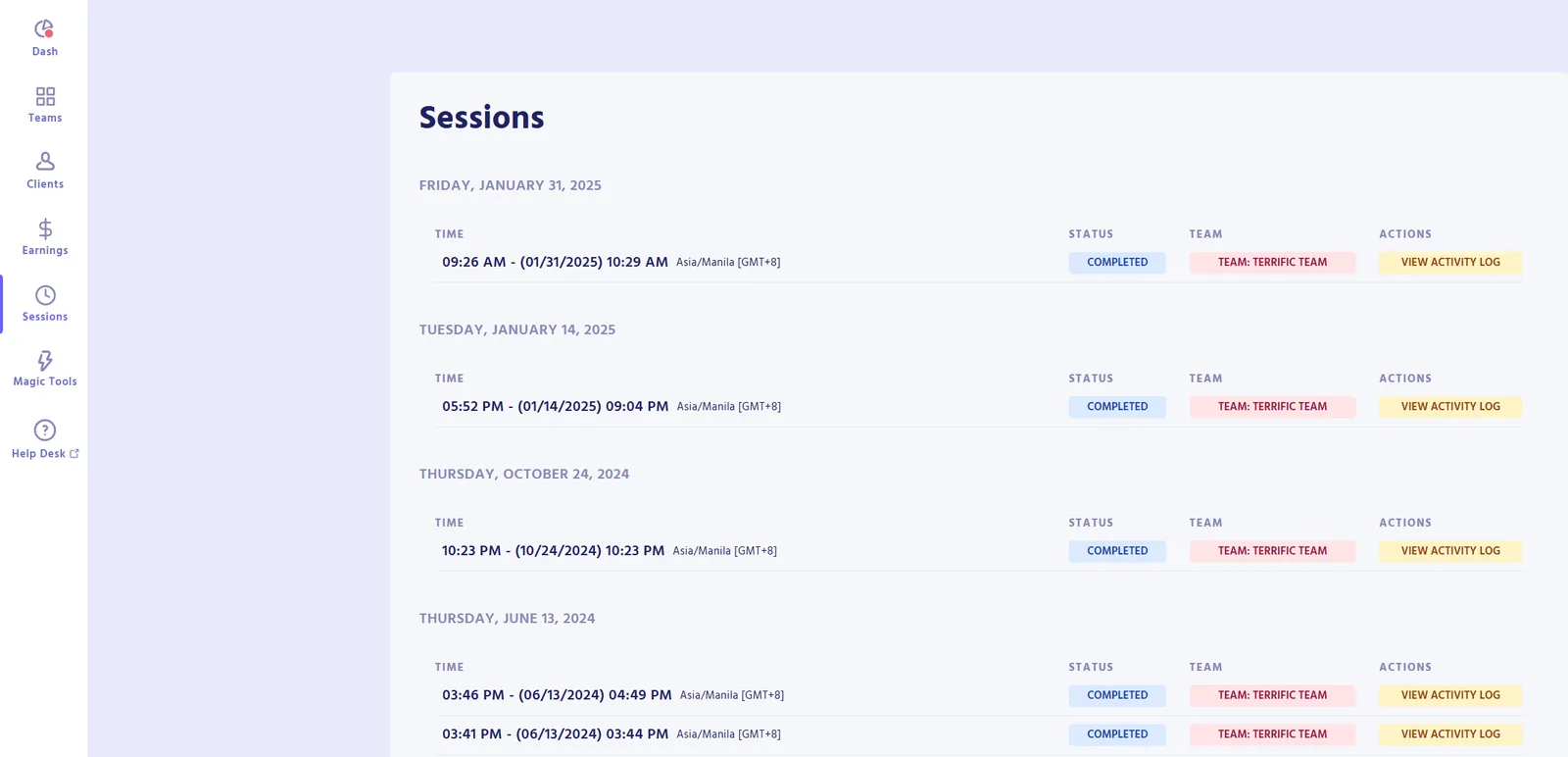
The Sessions page shows your clock in and clock out sessions, so every one is recorded and easy to look back on.
Earnings
The Earnings page shows a breakdown and the expected arrival date of your payout.
