
Your schedule
You’ll need a schedule for a team before you can start a shift for it.
-
On the app’s home screen, click Update schedule under the team.
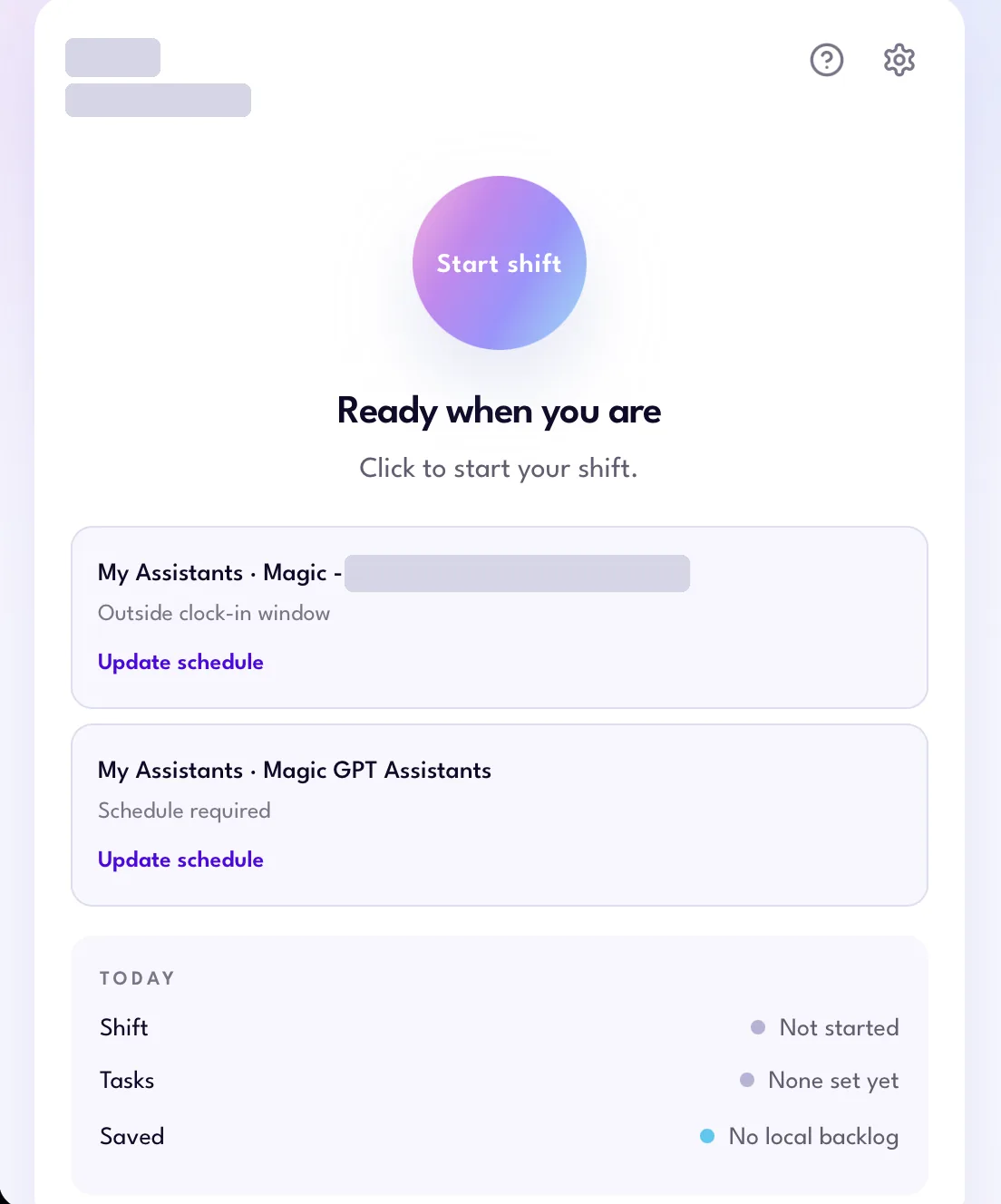
Update schedule on the home screen -
Choose the Client from the dropdown.
-
Select your work days, then enter your Start and End times. The screen shows which time zone your times are in.
-
Click Apply to your selected days, or Apply to all.
-
Click Save.
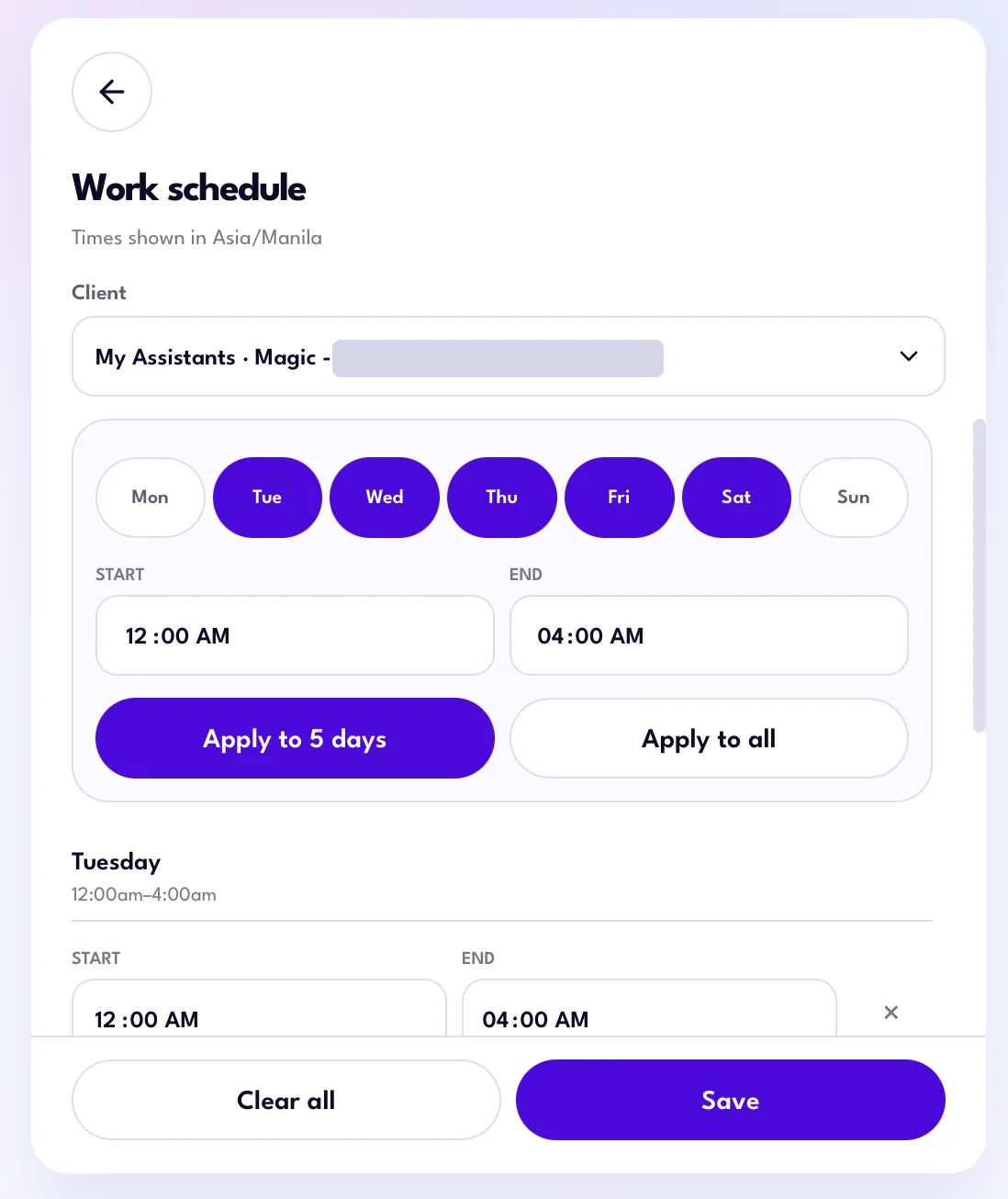
Work schedule
To change a day, edit its start and end times in the list, or click × to remove it. Clear all removes your whole schedule.
Adding tasks
You can add your tasks in the Magic Workspace App when you start your shift.
-
Click Start shift and choose the team this shift belongs to.
-
Under What is on for today?, type your task in Add another task, then click +.
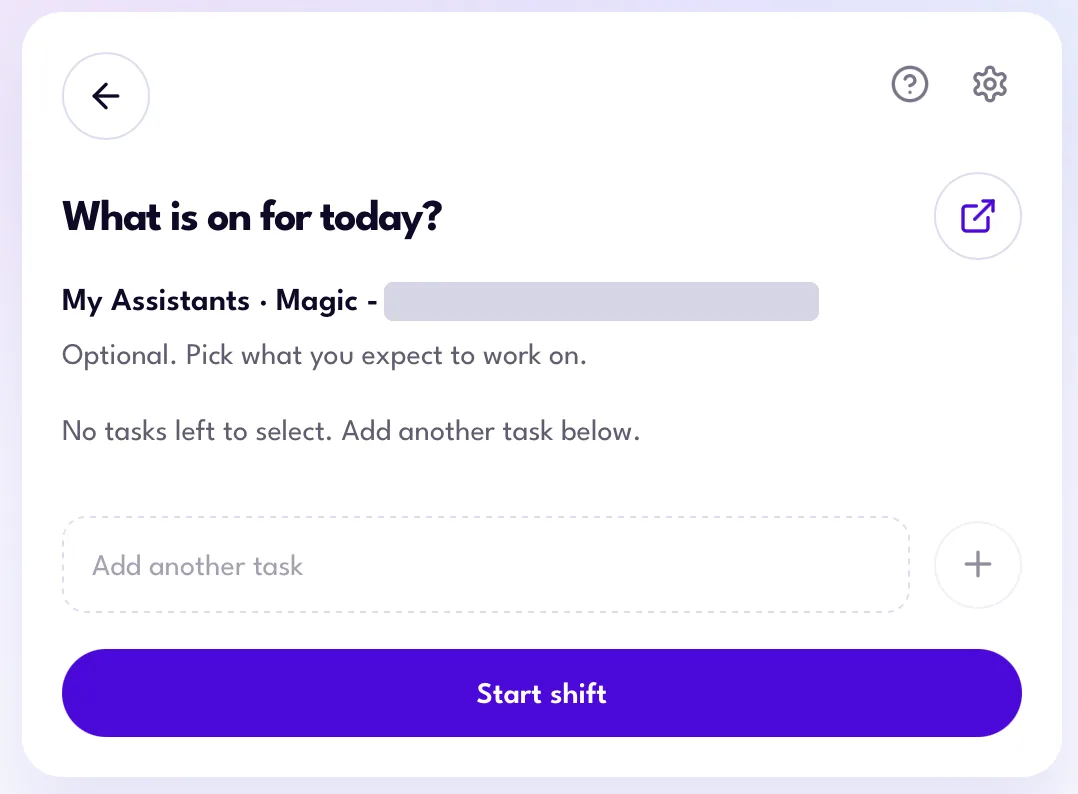
Adding a task -
Your task is added to the list. Pick the tasks you expect to work on. Beside each task, you can:
- Click the check icon to mark the task as Completed.
- Click the pencil icon to add details to the task.
- Click the trash icon to delete the task.
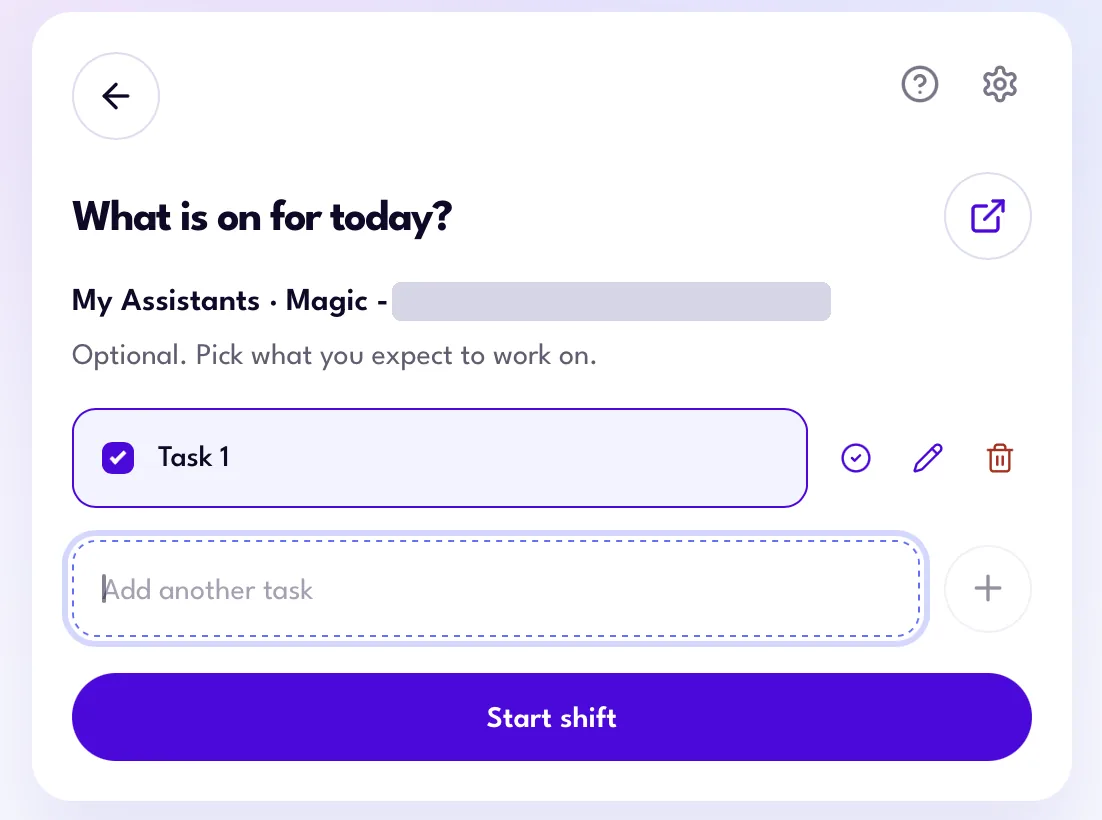
Picking tasks for today -
Click Start shift.
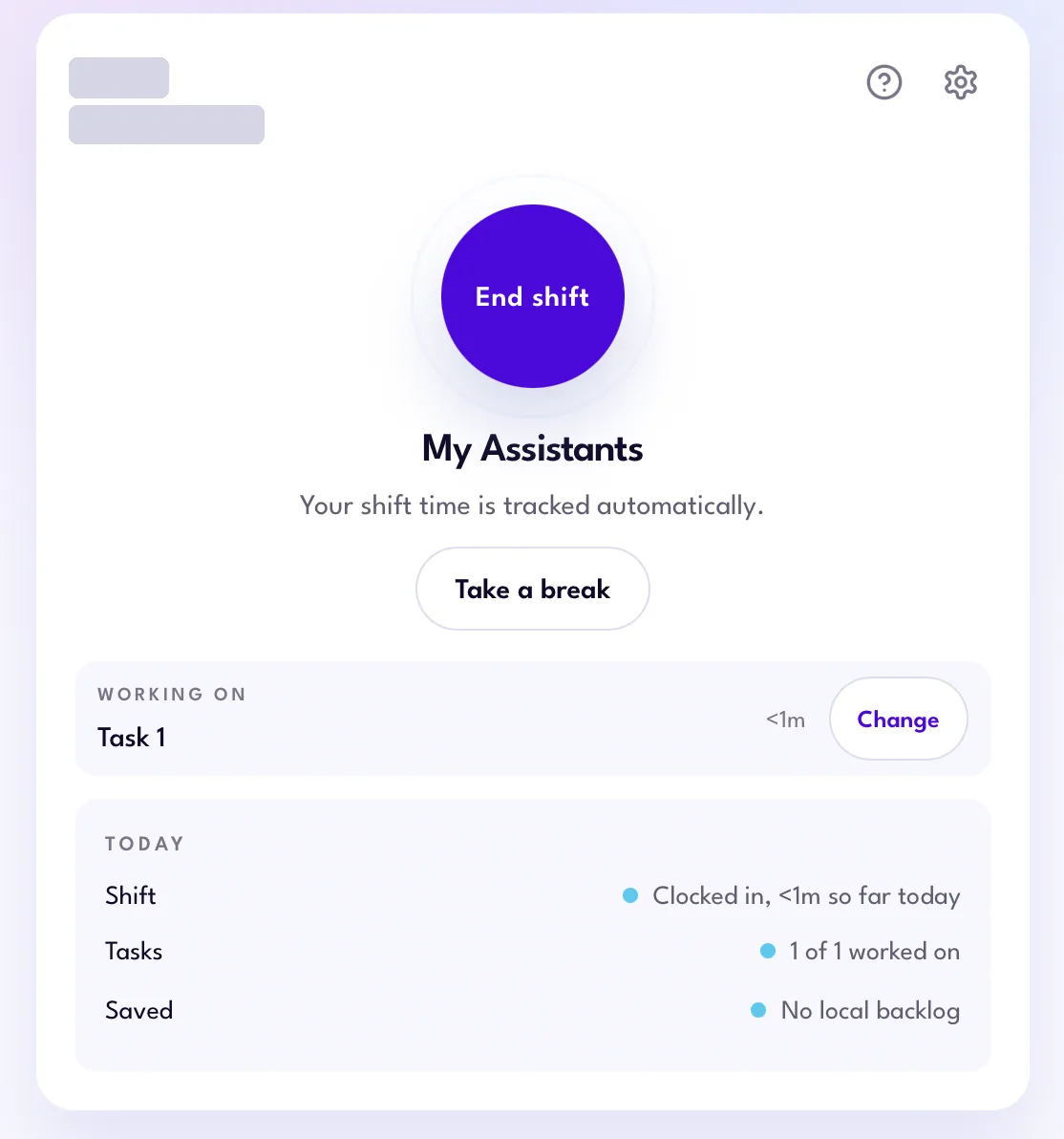
Once your shift starts, the task you’re working on shows under Working on. Click Change to switch tasks.
Make sure to follow the task naming conventions.
Getting help
Running into bugs, or the app isn’t working?
-
Click the gear icon at the top right of the app, scroll down, and click Send Diagnostics. This sends app diagnostics straight to our engineering team.

Send Diagnostics in app settings -
Fill out this form to report an issue or share feedback.
Have a question that’s not covered here?
Contact your Account Lead or fill out the feedback form.