
Magic Logo
Assistant Help Desk
  • Help Desk
  • Magic Workspace
  • Filing for Leave in Assistant Workspace
On this page
Magic Workspace

Filing for Leave in Assistant Workspace

The Leaves Tracker lets you request time off from your Workspace dashboard. Each request is routed to your client and Account Lead for visibility and approval.
  • Updated October 7, 2026

Important reminders

Filing doesn’t guarantee approvalWait for the confirmation email with your client’s decision.

File planned leave 5 business days aheadEmergencies: file as soon as you can, or tell your Account Lead right away.

You’ll get an email when your client respondsClients can approve as paid or unpaid, or decline.

Hours aren’t adjusted automaticallyTell your Account Lead and submit the Assistant Hours Adjustment Form.

Only valid while your contract is activeIf you’re offboarded before the leave date, the request is void.

You can cancel any timePending or approved leave can be cancelled in the Leaves Tracker.

How to file a leave

File from the Teams page in your Assistant Workspace.

  1. Go to your client’s team on the Assistant Workspace.

  2. Under Today’s Schedule, find the Leaves Tracker section.

  3. Click the Calendar button.

    Leaves Tracker on the Magic Workspace dashboard with the calendar button highlighted
    Leaves Tracker with the Calendar button
  4. Select the dates you’d like to request off.

  5. In Notes, state the reason for your leave (e.g. sick leave, personal errand, wedding).
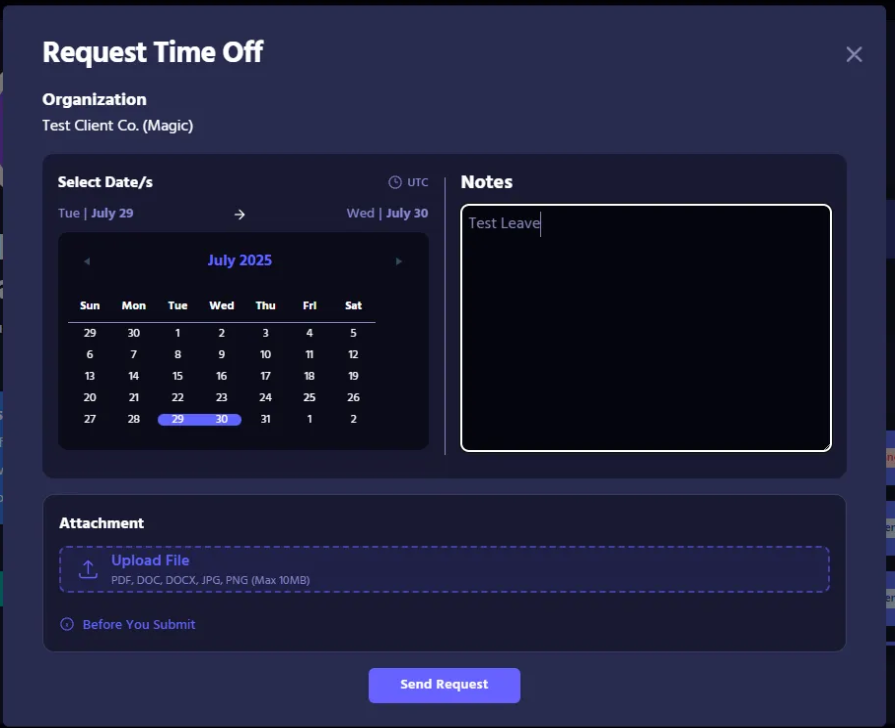
    Request Time Off form with the date picker, Notes field and Send Request button
    Choosing dates and adding notes
  6. If applicable, upload a supporting document under Attachment (e.g. medical certificate, wedding invite).

  7. Review the Before You Submit notice and double-check every detail.
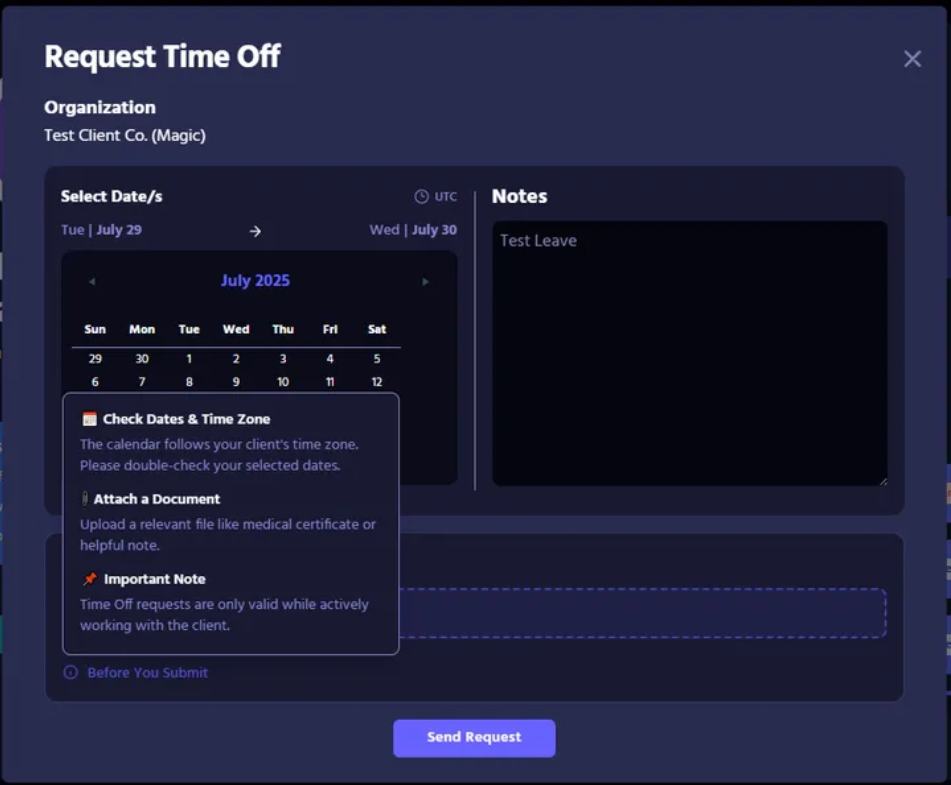
    Request Time Off form showing the Before You Submit notice
    The Before You Submit notice
  8. Click Send Request.

  9. Let your Account Lead and client know you’ve filed. They also receive the request by email.

  10. Wait for your client’s decision. You’ll get an email, and the status shows in your Leaves Tracker.
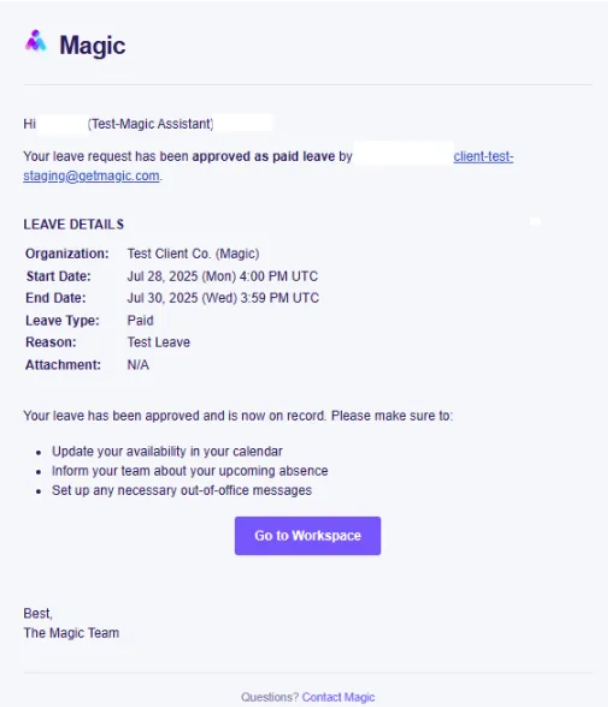
    Leave approval email from Magic with the leave details
    Decision email
    Approved leave in the Leaves Tracker marked Upcoming, with a Cancel button
    Status in the Leaves Tracker

Cancel a leave request

  1. Go to the Leaves Tracker.

  2. Click Cancel beside the pending leave.

  3. The status updates to Cancelled.

If your client ends service before the leave date, the leave is cancelled automatically.

Before, during & after

Before you file

  • Message your client first if it’s planned
  • Coordinate adjustments or handoffs
  • Loop in your Account Lead if you’ll need coverage

After you file

  • Send a quick message confirming the request
  • Say whether you’ll be fully or partly offline
  • Offer a short handover for multi-day leave

Preparing

  • Finish or delegate urgent tasks
  • Update shared calendars and timelines
  • Ask your Account Lead for help prepping your client

During

  • Under 1 week: clients can wait or use Magic 24/7 or support
  • Over 1 week: Magic may arrange help from the Assistant Shared pool
  • Long leave (e.g. maternity): a temporary replacement may be arranged

Returning

  • Update your availability in Workspace
  • Let your client know you’re back
  • Follow up on key tasks you missed
  • Sync with any temporary assistant

FAQs

Do I still need to tell my client if I filed through Workspace?

Yes. The system sends automatic notifications, but it’s best practice to tell your client directly — especially for planned leave.

How far in advance should I file for planned time off?

At least five (5) business days before your leave date.

What if it’s an emergency or I get sick unexpectedly?

Tell your Account Lead and client immediately. Then file in Workspace with a short explanation in Notes.

Is my leave automatically approved after I file?

No. Your client must approve (paid or unpaid) or decline. You’ll get a confirmation email.

Can I cancel a leave request after filing it?

Yes. Open the Leaves Tracker, find the request, and click Cancel.

What if I just message my client instead of filing in Workspace?

Workspace filing is the default. If you and your client already have a clear system that works, tell your Account Lead so we can turn this feature off for your account.

Otherwise, use Workspace. If you can’t access it, tell your Account Lead right away and share proof your client approved the leave — without it, the leave may not be valid and could cause pay issues.

I don’t have an Account Lead. Who should I contact?

Email Magic Support at [email protected].

What coverage is available while I’m on leave?

Under one week, clients can request Magic 24/7. For longer leave, temporary support may be arranged with enough lead time and a clear handoff.

Will this affect my pay?

Paid leave is billed as usual; unpaid leave isn’t paid. Your confirmation email will say which.

Was this article helpful?
More in Magic Workspace

End of Day Reports

New
At the end of your shift, review your workday and publish your End of Day report

Read →

Magic Workspace App Dashboard

New
Set your work schedule and manage your tasks in the Magic Workspace App. For clocking in

Read →

How to Change Your Email Address on Workspace

How to update the email address on your existing Workspace account without creating a new one.

Read →

Still having trouble?

Reach out to your Account Lead or Magic Assistant Support. For a persisting technical issue, report it to an engineer.

Email Assistant Support
Magic Logo Icon
VIRTUAL ASSISTANTS
PRODUCT
Executive Assistants
Magic 24/7
Support
Call: (888) 404-8243
USE CASES
Executive Tasks
General + Admin Tasks
Customer Service Tasks
Bookkeeping Tasks
RESOURCES
Blog
eBooks
Features
Case Studies
ROI Calculator
How It Works
COMPANY
About
Careers
Contact
  • Privacy
  • Terms
  • Cookie Policy
  • Opt-out preferences
  • Manage your preferences
© 2026 Magic, Inc. All Rights Reserved.
Manage Consent

To provide the best experiences, we use technologies like cookies to store and/or access device information. Consenting to these technologies will allow us to process data such as browsing behavior or unique IDs on this site. Not consenting or withdrawing consent, may adversely affect certain features and functions. Cookie Policy ⋅ Privacy Policy

Functional Always active
The technical storage or access is strictly necessary for the legitimate purpose of enabling the use of a specific service explicitly requested by the subscriber or user, or for the sole purpose of carrying out the transmission of a communication over an electronic communications network.
Preferences
The technical storage or access is necessary for the legitimate purpose of storing preferences that are not requested by the subscriber or user.
Statistics
The technical storage or access that is used exclusively for statistical purposes. The technical storage or access that is used exclusively for anonymous statistical purposes. Without a subpoena, voluntary compliance on the part of your Internet Service Provider, or additional records from a third party, information stored or retrieved for this purpose alone cannot usually be used to identify you.
Marketing
The technical storage or access is required to create user profiles to send advertising, or to track the user on a website or across several websites for similar marketing purposes.
  • Manage options
  • Manage services
  • Manage {vendor_count} vendors
  • Read more about these purposes
View preferences
  • {title}
  • {title}
  • {title}
Manage Consent

To provide the best experiences, we use technologies like cookies to store and/or access device information. Consenting to these technologies will allow us to process data such as browsing behavior or unique IDs on this site. Not consenting or withdrawing consent, may adversely affect certain features and functions. Cookie Policy ⋅ Privacy Policy

Functional Always active
The technical storage or access is strictly necessary for the legitimate purpose of enabling the use of a specific service explicitly requested by the subscriber or user, or for the sole purpose of carrying out the transmission of a communication over an electronic communications network.
Preferences
The technical storage or access is necessary for the legitimate purpose of storing preferences that are not requested by the subscriber or user.
Statistics
The technical storage or access that is used exclusively for statistical purposes. The technical storage or access that is used exclusively for anonymous statistical purposes. Without a subpoena, voluntary compliance on the part of your Internet Service Provider, or additional records from a third party, information stored or retrieved for this purpose alone cannot usually be used to identify you.
Marketing
The technical storage or access is required to create user profiles to send advertising, or to track the user on a website or across several websites for similar marketing purposes.
  • Manage options
  • Manage services
  • Manage {vendor_count} vendors
  • Read more about these purposes
View preferences
  • {title}
  • {title}
  • {title}
Login as a Client
Dedicated Login
Classic Login
Login as an Assistant
Assistant Login
Don’t have an account? Get started now!