Magic Logo
Assistant Help Desk
  • Help Desk
  • Magic Workspace
  • Clocking In and Out
On this page
Magic Workspace

Clocking In and Out

Your clock ins and clock outs are done through the Magic Workspace App. Don’t have it yet? Follow the steps on Magic Workspace App to install it.
  • Updated October 7, 2026

Clocking in

Start your day by clocking in through the Magic Workspace App. Nothing starts until you clock in for your shift.

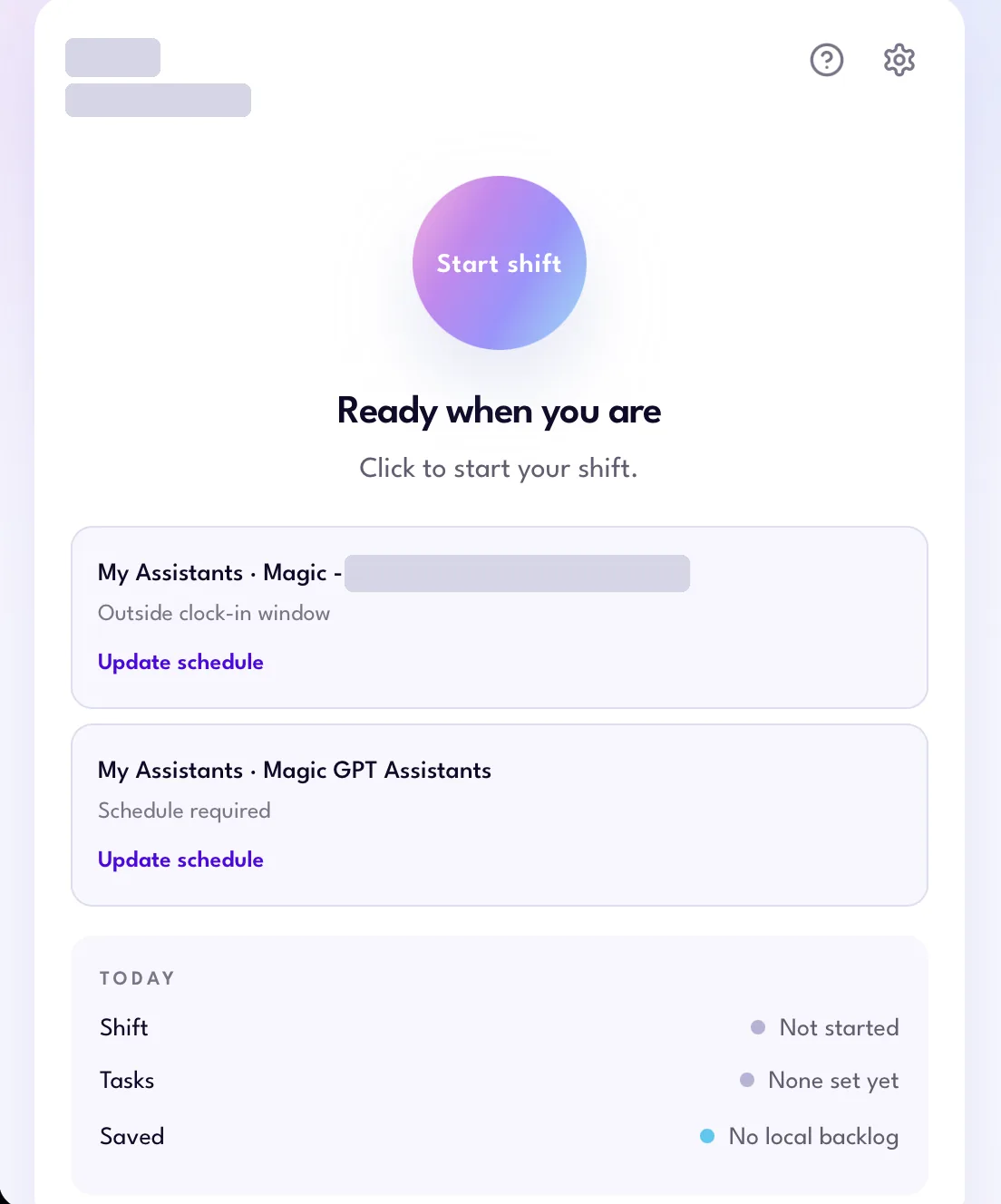
  1. Click Start shift.

    Magic Workspace App home screen with the Start shift button and today's shift status
    Start shift
  2. Under Who are you working for today?, choose the team this shift belongs to, then click Next.
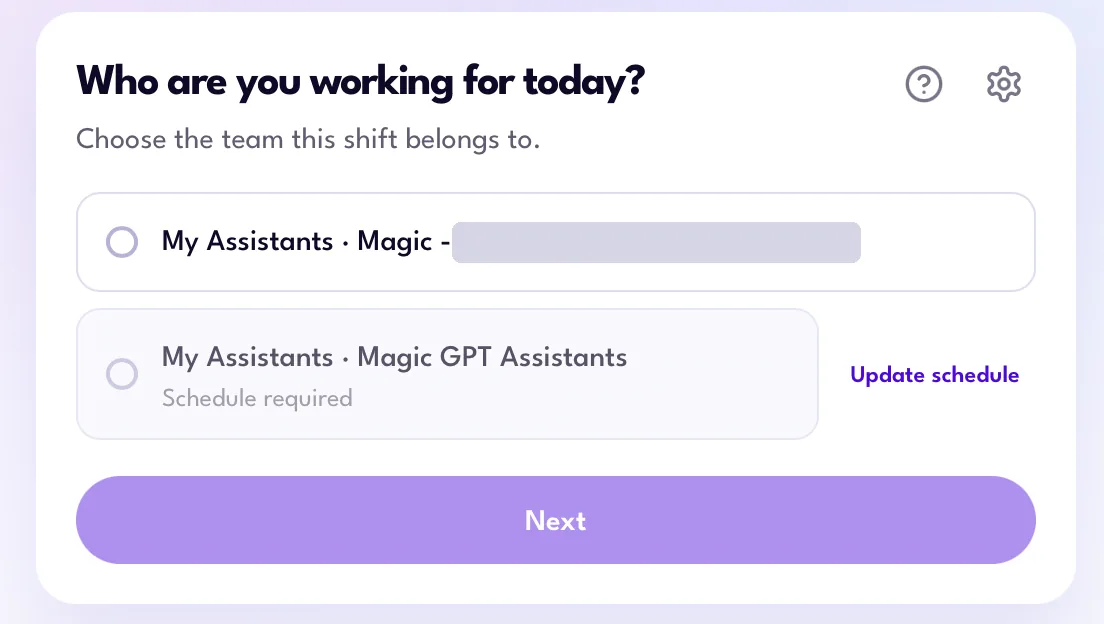
    Who are you working for today screen in the Magic Workspace App for choosing the team for a shift
    Choosing a team

    If a team shows Schedule required, click Update schedule to set your work schedule first. See Magic Workspace App Dashboard for the steps.

  3. Under What is on for today?, pick the tasks you expect to work on or add a new one. This step is optional. Then click Start shift. For more on adding and updating tasks, see Magic Workspace App Dashboard.
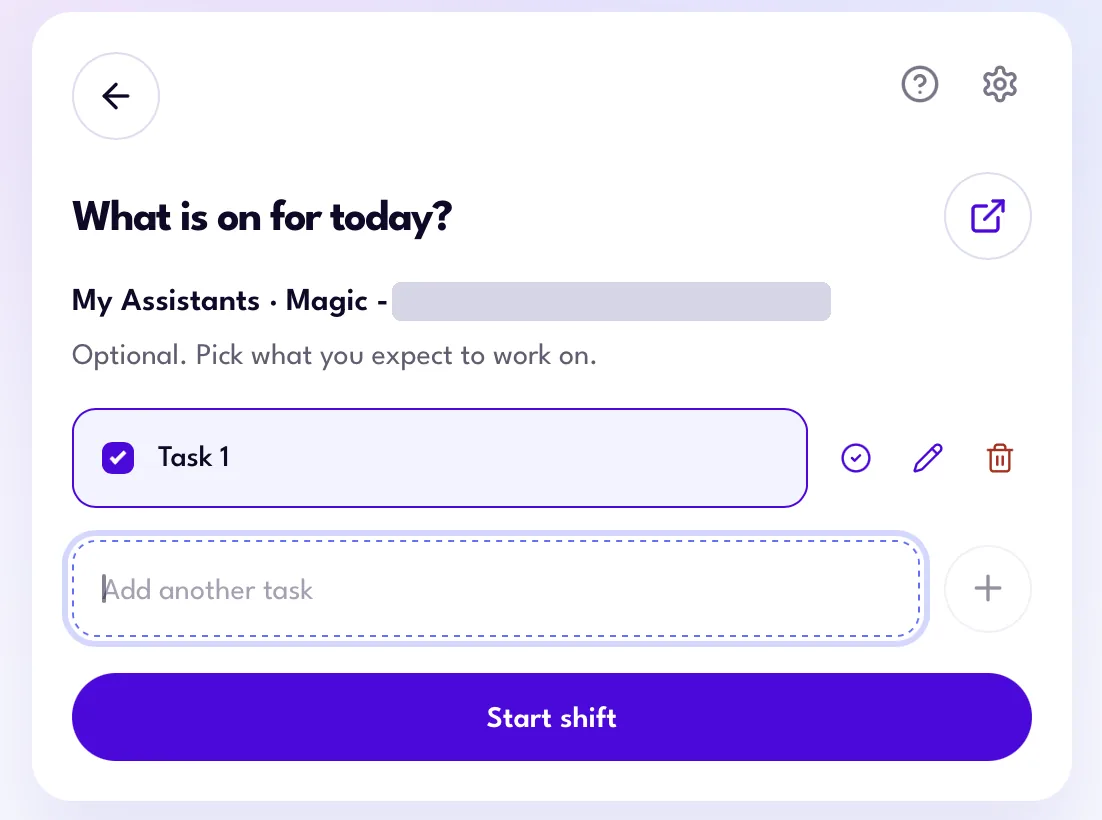
    What is on for today screen in the Magic Workspace App with a selected task and its complete, edit and delete icons
    Picking tasks for today

Once your shift starts, your shift time is tracked automatically. The task you’re working on shows under Working on. Click Change to switch tasks.
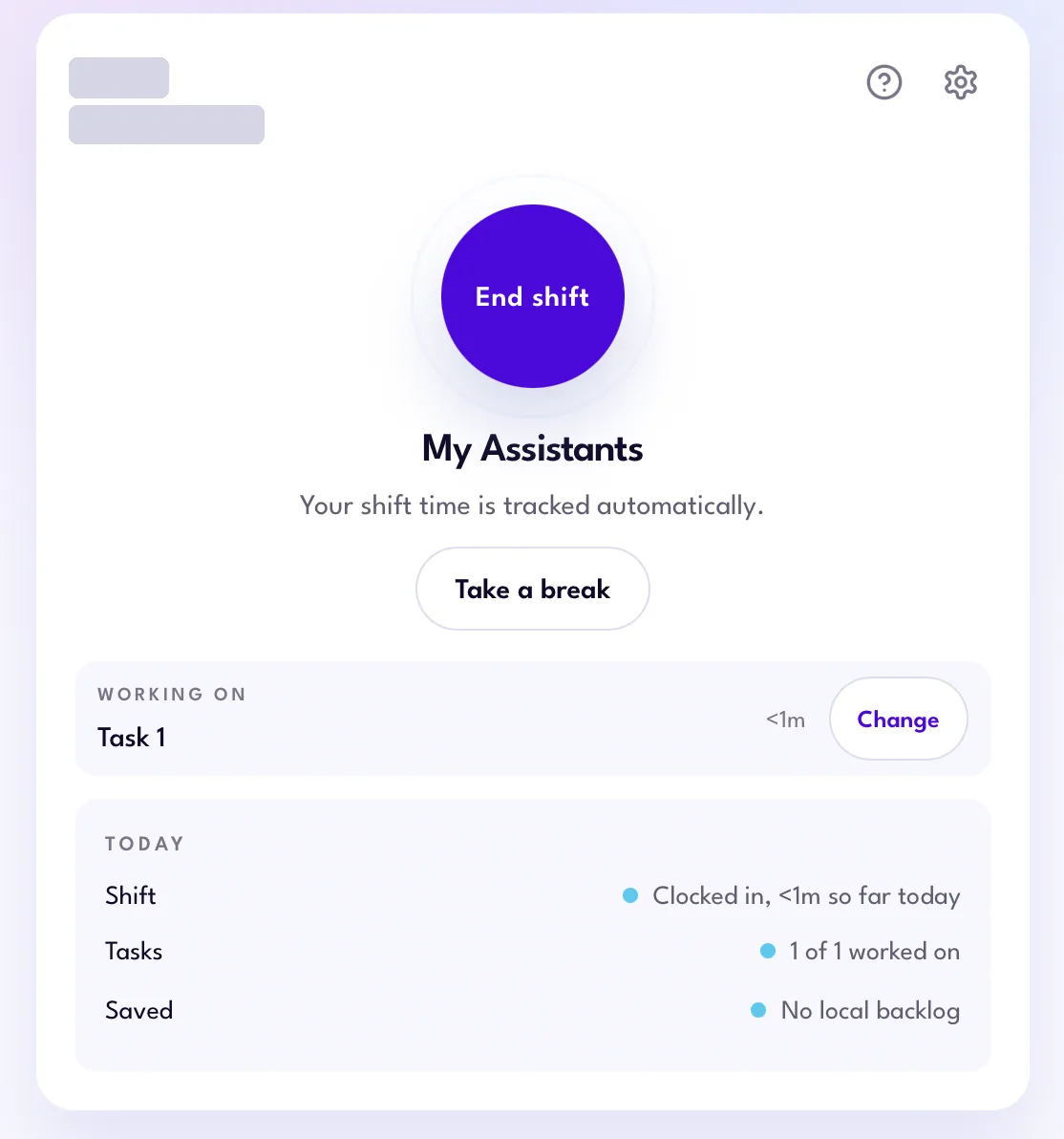
Active shift in the Magic Workspace App with the End shift and Take a break buttons and the current task
An active shift

Taking a break

Stepping away? Use Take a break instead of clocking out. The app pauses while you’re on break, shows a countdown, and reminds you when it’s almost time to head back.

Click Take a break, then pick 15 minutes, 30 minutes, 45 minutes, or 1 hour. You can also enter a custom duration from 1 to 60 minutes and click Start break.
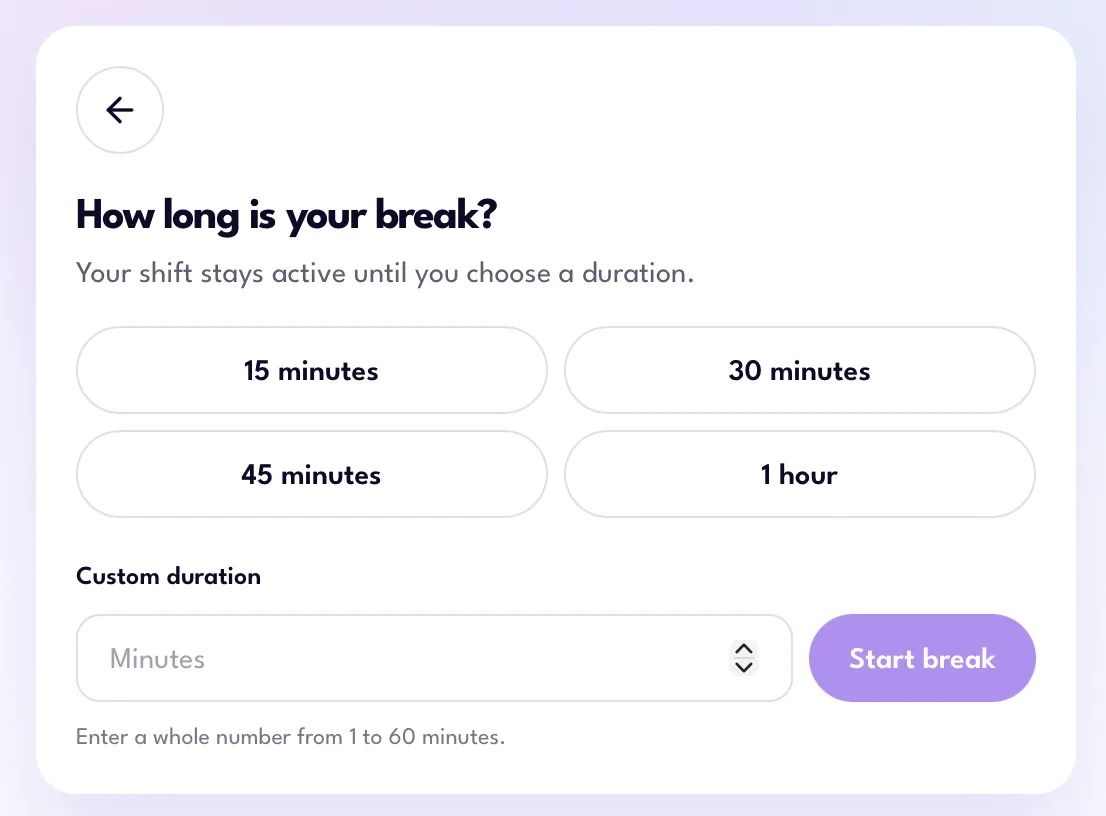
Take a break screen in the Magic Workspace App with 15, 30 and 45 minute, 1 hour and custom duration options
Taking a break

Clocking out

Clock out in the Magic Workspace App when you’re done. This keeps your hours accurate and gets everything ready for your End of Day report.

  1. Click End shift.

  2. You’ll see where your time went. Click Review End of Day report, or Just clock out. Back to shift takes you back to your shift.

    Shift time summary in the Magic Workspace App with the Review End of Day report and Just clock out buttons
    Shift summary

For the steps to review and publish your report, see End of Day Reports.

There’s no automatic clock outThe app won’t clock you out on its own, so remember to clock out when your shift ends.

Getting help

Running into bugs, or the app isn’t working?

  1. Click the gear icon at the top right of the app, scroll down, and click Send Diagnostics. This sends app diagnostics straight to our engineering team.
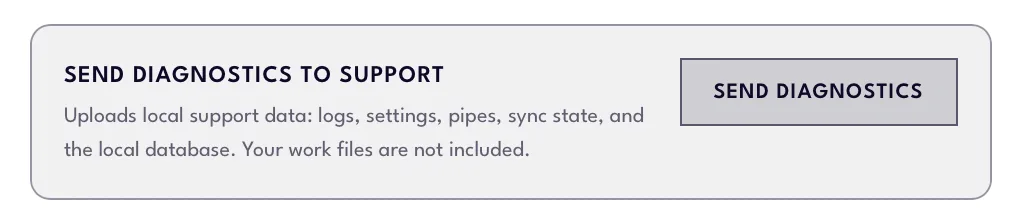
    Send Diagnostics to Support option in the Magic Workspace App settings
    Send Diagnostics in app settings
  2. Fill out this form to report an issue or share feedback.

Have a question that’s not covered here?

Contact your Account Lead or fill out the feedback form.

Was this article helpful?
More in Magic Workspace

End of Day Reports

New
At the end of your shift, review your workday and publish your End of Day report

Read →

Magic Workspace App Dashboard

New
Set your work schedule and manage your tasks in the Magic Workspace App. For clocking in

Read →

Filing for Leave in Assistant Workspace

Updated
The Leaves Tracker lets you request time off from your Workspace dashboard. Each request is routed

Read →

Still having trouble?

Reach out to your Account Lead or Magic Assistant Support. For a persisting technical issue, report it to an engineer.

Email Assistant Support
Magic Logo Icon
VIRTUAL ASSISTANTS
PRODUCT
Executive Assistants
Magic 24/7
Support
Call: (888) 404-8243
USE CASES
Executive Tasks
General + Admin Tasks
Customer Service Tasks
Bookkeeping Tasks
RESOURCES
Blog
eBooks
Features
Case Studies
ROI Calculator
How It Works
COMPANY
About
Careers
Contact
  • Privacy
  • Terms
  • Cookie Policy
  • Opt-out preferences
  • Manage your preferences
© 2026 Magic, Inc. All Rights Reserved.
Manage Consent

To provide the best experiences, we use technologies like cookies to store and/or access device information. Consenting to these technologies will allow us to process data such as browsing behavior or unique IDs on this site. Not consenting or withdrawing consent, may adversely affect certain features and functions. Cookie Policy ⋅ Privacy Policy

Functional Always active
The technical storage or access is strictly necessary for the legitimate purpose of enabling the use of a specific service explicitly requested by the subscriber or user, or for the sole purpose of carrying out the transmission of a communication over an electronic communications network.
Preferences
The technical storage or access is necessary for the legitimate purpose of storing preferences that are not requested by the subscriber or user.
Statistics
The technical storage or access that is used exclusively for statistical purposes. The technical storage or access that is used exclusively for anonymous statistical purposes. Without a subpoena, voluntary compliance on the part of your Internet Service Provider, or additional records from a third party, information stored or retrieved for this purpose alone cannot usually be used to identify you.
Marketing
The technical storage or access is required to create user profiles to send advertising, or to track the user on a website or across several websites for similar marketing purposes.
  • Manage options
  • Manage services
  • Manage {vendor_count} vendors
  • Read more about these purposes
View preferences
  • {title}
  • {title}
  • {title}
Manage Consent

To provide the best experiences, we use technologies like cookies to store and/or access device information. Consenting to these technologies will allow us to process data such as browsing behavior or unique IDs on this site. Not consenting or withdrawing consent, may adversely affect certain features and functions. Cookie Policy ⋅ Privacy Policy

Functional Always active
The technical storage or access is strictly necessary for the legitimate purpose of enabling the use of a specific service explicitly requested by the subscriber or user, or for the sole purpose of carrying out the transmission of a communication over an electronic communications network.
Preferences
The technical storage or access is necessary for the legitimate purpose of storing preferences that are not requested by the subscriber or user.
Statistics
The technical storage or access that is used exclusively for statistical purposes. The technical storage or access that is used exclusively for anonymous statistical purposes. Without a subpoena, voluntary compliance on the part of your Internet Service Provider, or additional records from a third party, information stored or retrieved for this purpose alone cannot usually be used to identify you.
Marketing
The technical storage or access is required to create user profiles to send advertising, or to track the user on a website or across several websites for similar marketing purposes.
  • Manage options
  • Manage services
  • Manage {vendor_count} vendors
  • Read more about these purposes
View preferences
  • {title}
  • {title}
  • {title}
Login as a Client
Dedicated Login
Classic Login
Login as an Assistant
Assistant Login
Don’t have an account? Get started now!