
System requirements
Download the app
Choose the installer for your device.
Install on Mac
-
Open the downloaded file.
-
Drag the app icon to the Applications folder.
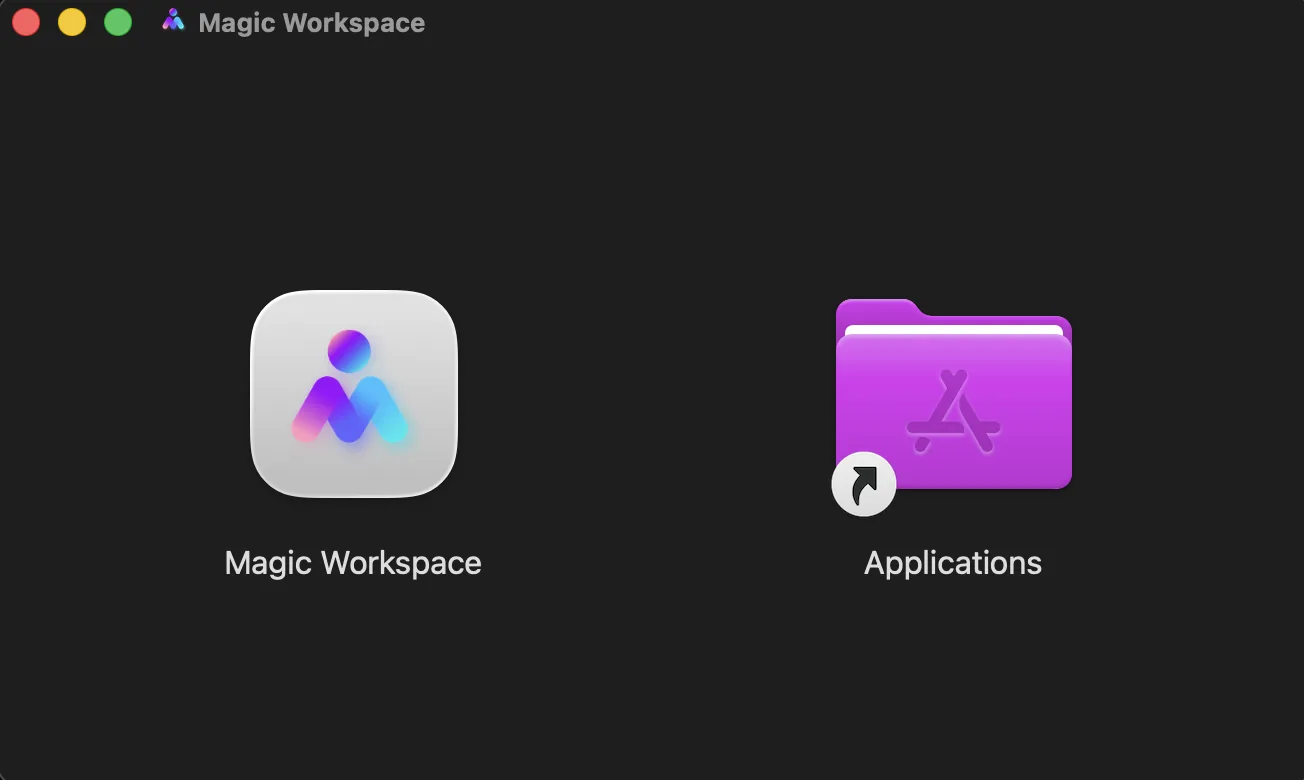
Drag Magic Workspace into Applications -
Open the app and enter your Workspace credentials.
Install on Windows
-
Open the downloaded file and click through the installation steps.
-
If Windows shows Windows protected your PC, click More info, then Run anyway.
1Windows protected your PCMicrosoft Defender SmartScreen prevented an unrecognized app from starting.More infoDon’t run2Windows protected your PCMicrosoft Defender SmartScreen prevented an unrecognized app from starting.Run anywayDon’t runIllustration. Your screen may look slightly different. -
Open the app and enter your Workspace credentials.
Signing inClick Sign in with Magic, or enter your Workspace email and password and click Sign In.
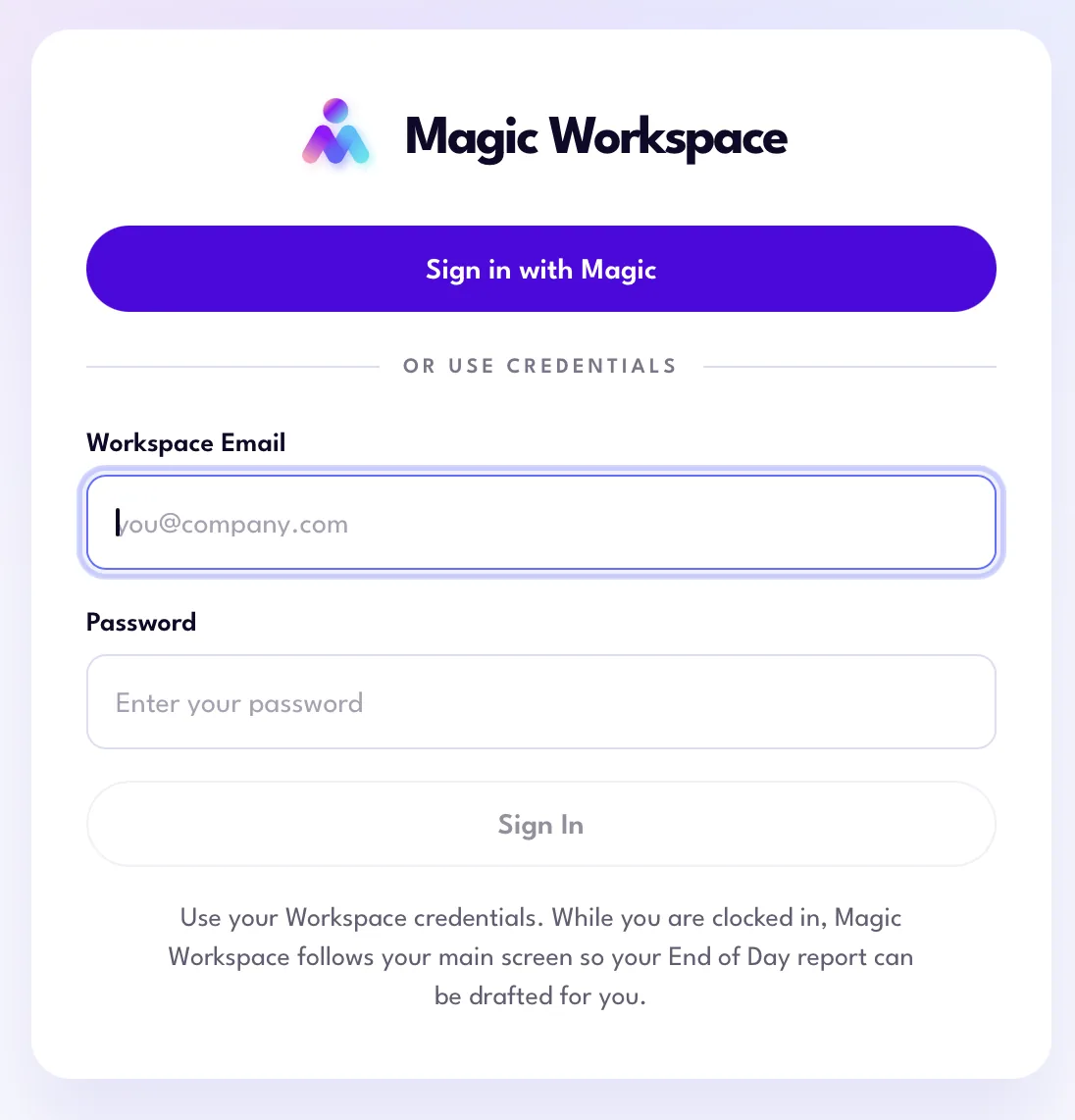
First time setup
The first time you open the app, allow two permissions so it can work properly:
- Screen Recording
- Lets Magic Workspace capture your work activity while you’re clocked in.
- Accessibility
- Helps Magic Workspace understand the apps you use and how you work in them.
Once both permissions show Granted, click Take me in. Nothing starts until you clock in for your shift.
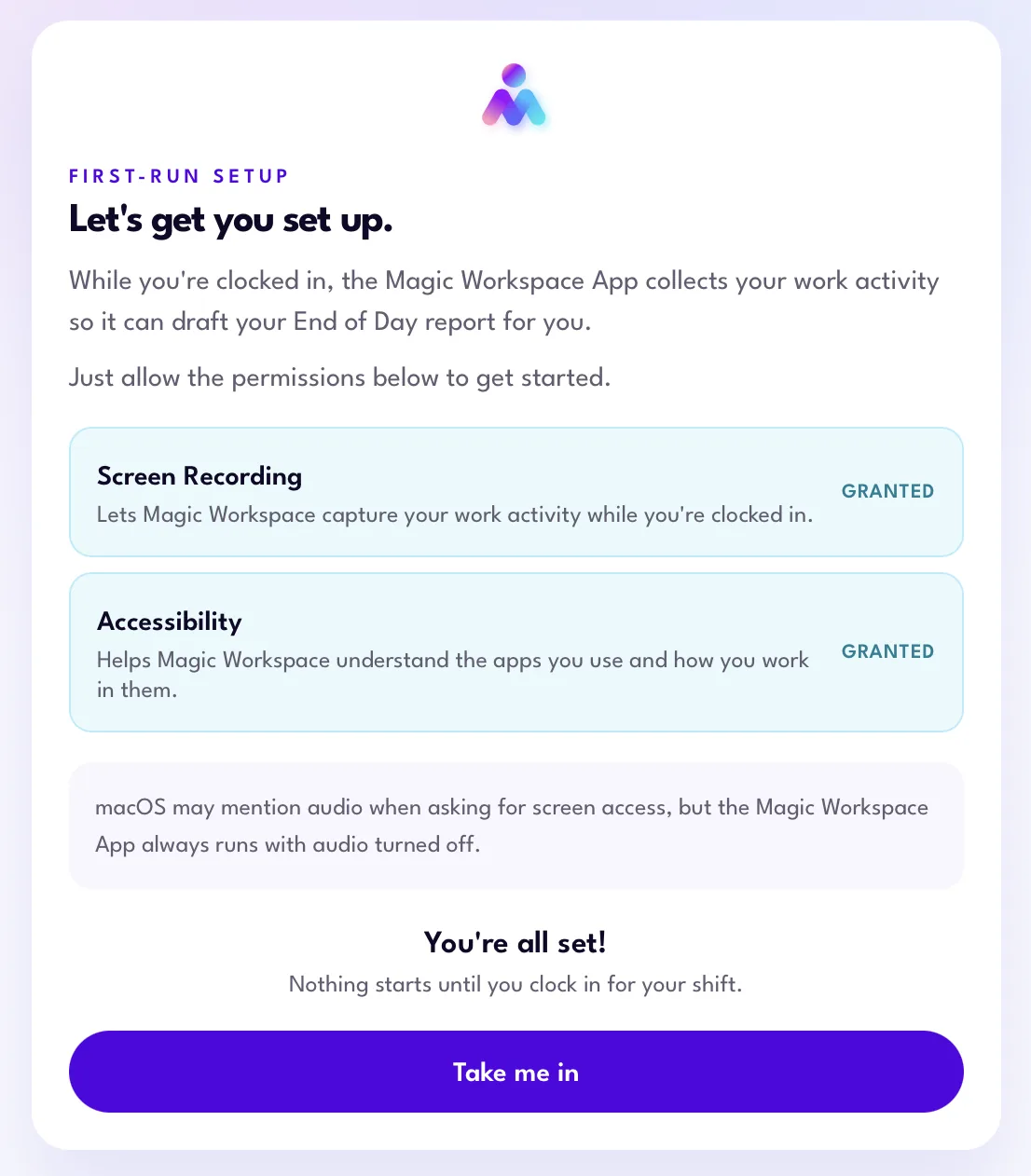
On Mac, macOS may mention audio when asking for screen access. The Magic Workspace App always runs with audio turned off.
Key features
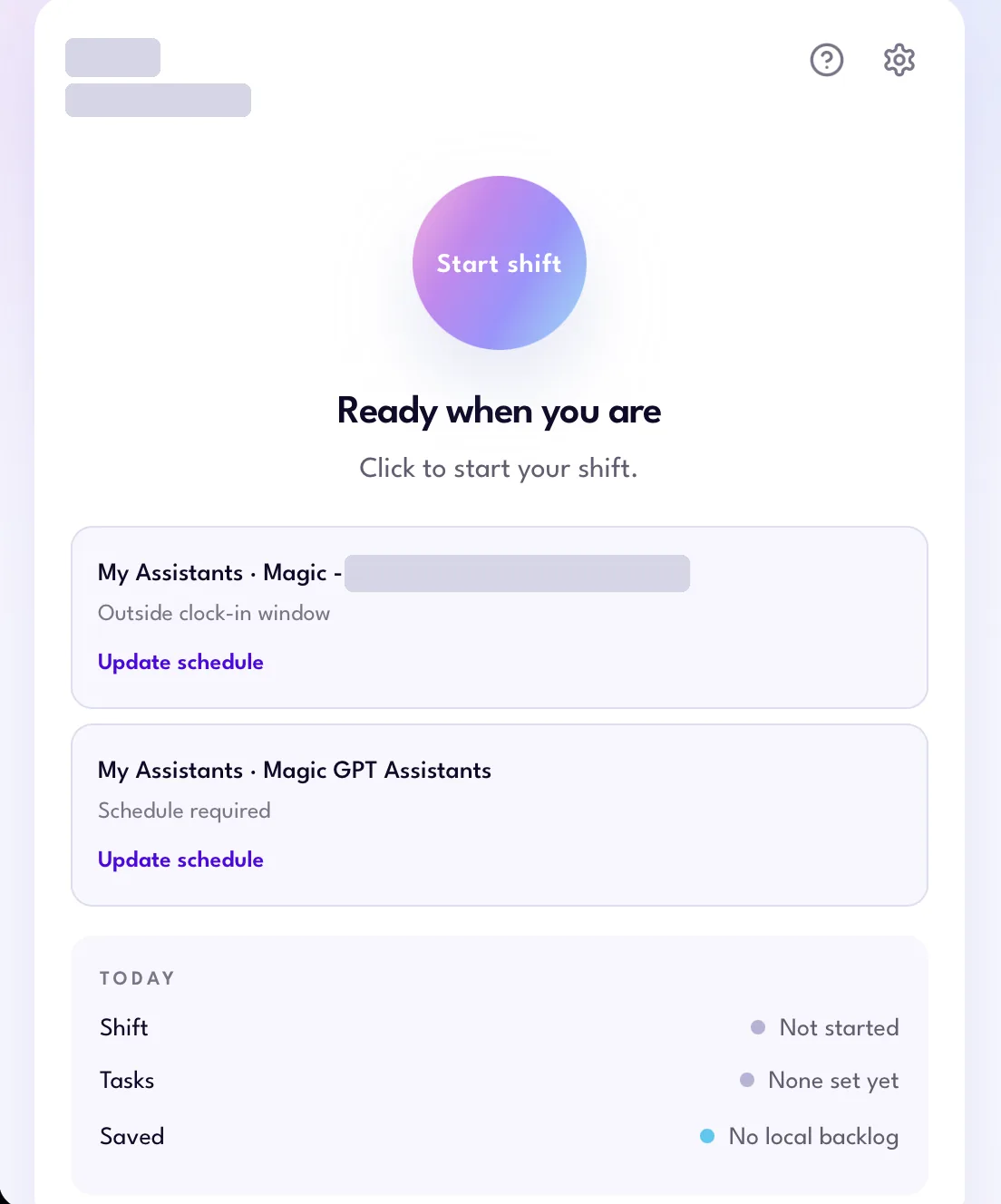
Clock in and out
Start your day by clocking in, and clock out when you’re done. Your hours stay accurate and your End of Day report is ready to go.
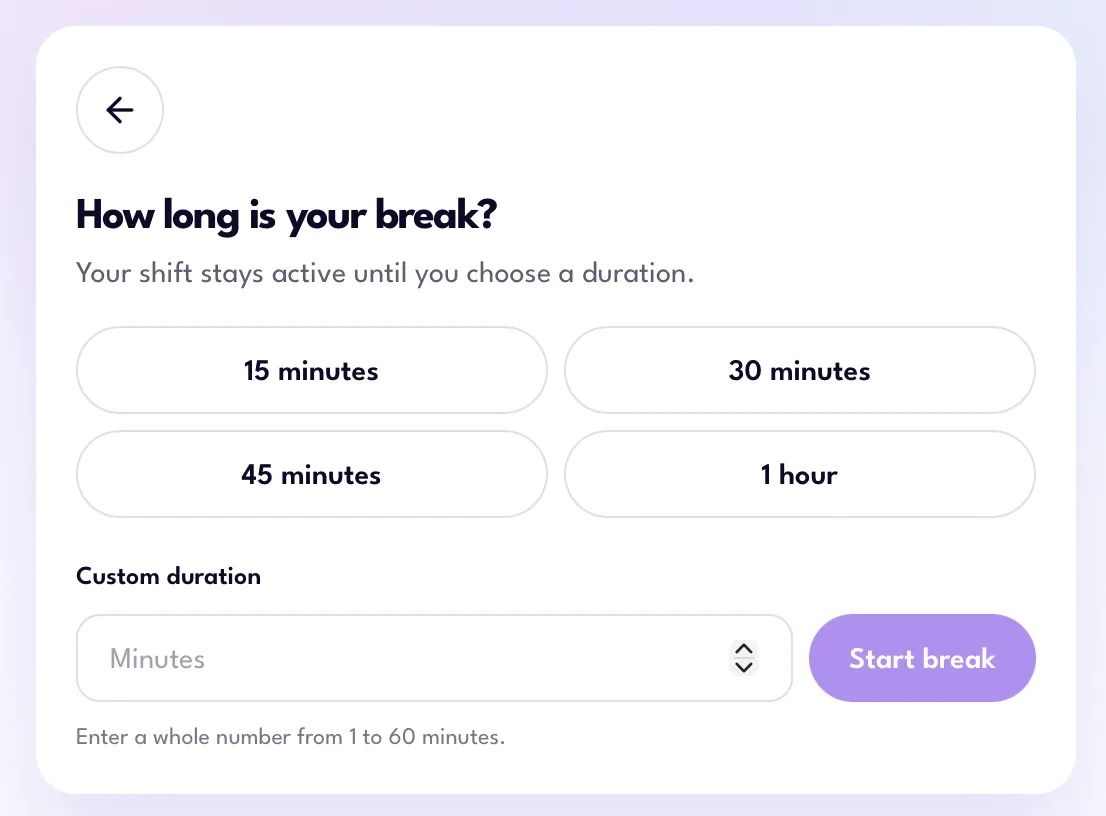
Take a break
Stepping away? Use Take a Break instead of clocking out. The app pauses, shows a countdown, and reminds you when it’s almost time to head back.
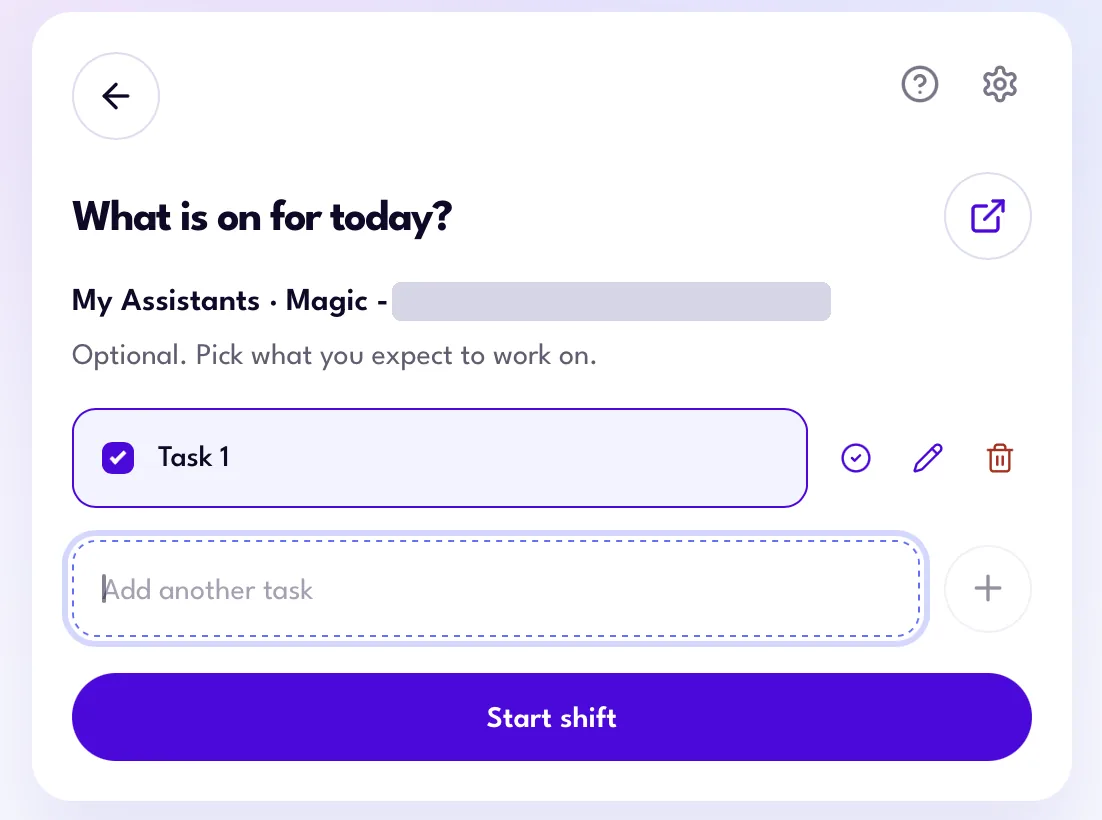
Task management
Add and update tasks as you go. A current list helps your Account Lead give you more relevant support.
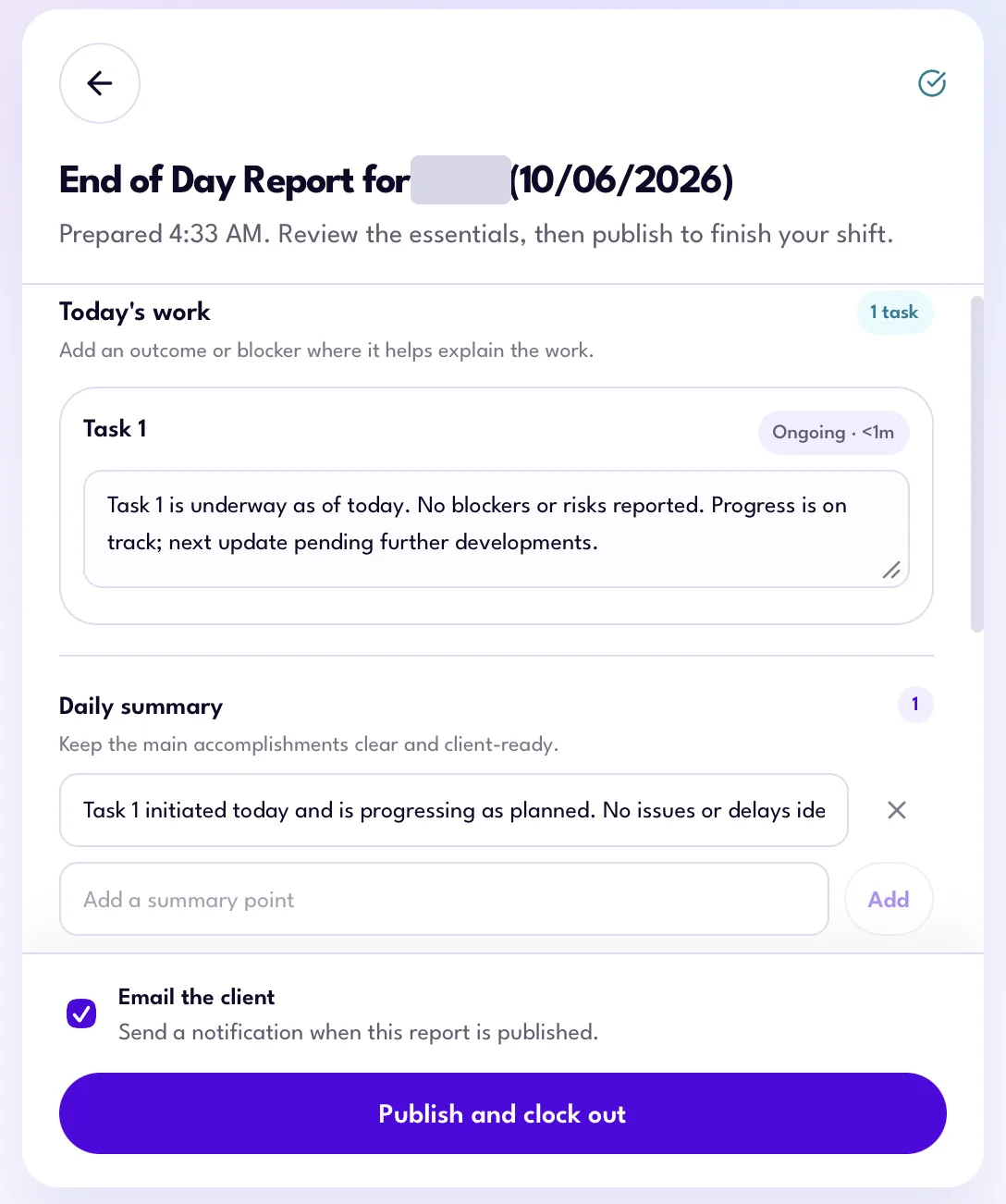
End of Day report
Review your workday and publish your End of Day report from the app. Drafts save automatically.
FAQs
Why am I being asked to use this?
The app helps us understand how work gets done so we can give you relevant support and coaching to help you succeed with your client.
What does it do?
While the app runs during your shift, it collects work activity from your desktop, including periodic screen captures and certain activity information. This gives your Account Lead more context so they can guide and support you throughout your day.
What if I need to step away during my shift?
Use the break/lunch option in the app so it pauses monitoring during that time.
What if I forget to turn it off and it runs during personal use?
If the app captures something personal or sensitive by accident, email [email protected] as soon as possible. We’ll handle it promptly and securely and, where appropriate, remove it.
What happens to keystroke data? What if I type a password while the app is running?
The app does not capture information entered into password fields. Keystrokes are captured separately from desktop activity, and password fields are excluded to help protect sensitive information.
How long are desktop activities kept?
Session data is automatically cleared after 48 hours.
Will my client know I’m using this app?
Yes. Clients are informed about the desktop app through Magic’s updated Terms of Service and Privacy Policy.
Who can view the activity?
Desktop activity is only accessible to authorized Magic team members.
Where is my data stored?
Your data is stored temporarily on your computer while it syncs. Once syncing is complete, it’s removed from your device and securely stored in the cloud.
What happens to my personal information on a personal device?
The app is designed to redact personal information, but may miss things from time to time. Avoid using personal apps or accessing personal information while the app is running, and use the break function when you step away.
Are full screenshots ever shared with third parties?
No. Screenshots are redacted before they’re shared with third parties. Only anonymized, de-identified, or redacted data may be shared externally, which may include mouse clicks, mouse movements, keystrokes, and screen captures.
What safeguards are in place to protect my personal information?
Personal information is redacted from screenshots, password fields are excluded from capture, and keystroke activity is anonymized or de-identified before it’s shared with third parties. If personal or sensitive information is captured by accident, report it to [email protected].
Getting help
Running into bugs, or the app isn’t working?
-
Click the gear icon at the top right of the app, scroll down, and click Send Diagnostics. This sends app diagnostics straight to our engineering team.
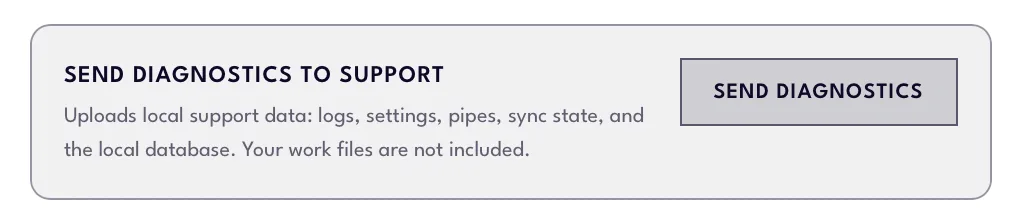
Send Diagnostics in app settings -
Fill out this form to report an issue or share feedback.
Have a question that’s not covered here?
Contact your Account Lead or fill out the feedback form. For privacy or security concerns, email [email protected].