
Please follow the steps below to install the Magic Workspace Desktop Application.
Download the Desktop App
Choose the correct installer based on your device:
- macOS
- For Macs with Apple Silicon processors (M1, M2, M3): Download link
- For Macs with Intel processors (i3, i5, i7, i9): Download link
- Windows (Windows 10 and above)
- Desktop app installer: Download link
📍 Important Note: You must have an active Workspace account and a stable internet connection to sign in and complete the desktop app installation.
Installation Guide for Mac Users
- Installing the Application
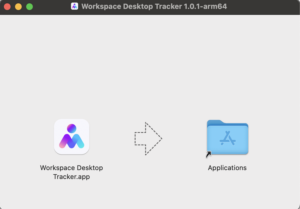
Step 1. Open your downloads folder and double-click on Workspace-Desktop-Tracker-1.0.2
Step 2. Drag and drop the Workspace Desktop Tracker.app to the Applications folder.
Step 3. Open Terminal (Cmd + Space → type “Terminal” → Enter) and run this command: xattr -cr /Applications/Workspace\ Desktop\ Tracker.app
Step 4. The app is now ready to use. You can launch it from your Applications folder.
Installation Guide for Windows Users
- Installing the Application
Step 1: Open your downloads folder and double-click on Workspace Desktop Tracker Setup 1.0.0.exe
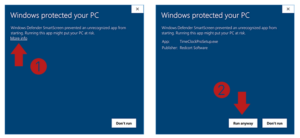
Step 2: If prompted by Windows security, select “More Info” and then “Run anyway” to proceed with the installation
How to use the Desktop Application
Open the Application: Upon first opening, you will be greeted with an onboarding process.
Login: Sign in to Workspace Desktop Tracker with the same login information used for Assistant Workspace. Upon successful login, you will see the Home page.
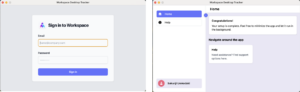
Activity Tracking: Once logged in, the app will automatically track activity while you continue your usual work, with Workspace running in the background.
Logging Out: To stop logging activities when you’re not working or to prevent unnecessary data capture, there are two options:
- Log Out: Logging out will stop the application from recording activity but will not cause it to close by itself.
- Quit the App:
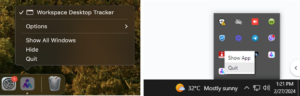
- On Windows, right-click the Workspace Desktop Tracker icon in the System Tray Menu and choose “Quit.” This will fully close the application.
- On Mac, you can right-click on the application in the dock and choose quit or press Cmd + Q when using it.
Handling Issues and Reporting
- Troubleshooting:Try closing and restarting the desktop application. If the issue persists after restarting, proceed to the next step.
- Document the Error: Take a screenshot or screen recording of the issue or error message. Provide information or details about what actions led to the issue.
- Report Persisting Issues: Should the issue remain, please reach out to your Account Lead or to the Support Team at [email protected].
- Temporarily Halt Usage: Stop using the application if significant issues persist and are disrupting your workflow until they are resolved.
Data Tracking
This Data Notes section provides information about how the app tracks user activity, responds to their status, and manages data recording.
- Screenshot and Data Capture:
- The app captures and sends a screenshot and app usage data every 5 minutes, provided the system is not idle
- Idle Time Detection and Behavior:
- The system checks for idle status every minute
- A continuous period of 5 minutes of inactivity is recorded as idle time, during which data capture is paused and the app remains idle.
- During this idle state, it will not record data but will continue to periodically check if the user has clocked in or out.
- Session and Clock-In Status Checks:
- The app checks the session/clock-in status every minute.
- Active tracking of data and activities occurs only when the user is clocked in.
Finished installing the Desktop App? Click here and follow the instructions on How to install the Magic Assistant Workspace Tracker Chrome Extension.
🛈 If you are encountering technical problems, read this to troubleshoot first.
🛈 Still having trouble? Disregard the purple banner below and follow these steps to report a persisting issue to an engineer.
→ Read more: Workspace FAQs