
These features help manage how MagicGPT interprets your prompts and uses context to generate accurate and relevant responses. Understanding these controls allows you to guide the tool more effectively based on your task.
Attachments / Direct Paste

You can attach files or images to give MagicGPT more context for your prompt. Files can be added in three ways: through the + menu, by drag and drop, or by copy-pasting directly into the chat. MagicGPT supports common file formats such as PDF, CSV, DOCX, XLSX, and PPTX, as well as images. Providing attachments helps improve the accuracy and relevance of responses.
Agent / Tool Selector

This feature controls how MagicGPT selects tools for your prompt. In Agent Mode, MagicGPT automatically chooses the most appropriate tool based on your request. If you prefer more control, you can use the Tool Selector to manually choose a specific tool depending on the task you want to accomplish.
Screen Context Enablement

Screen Context allows MagicGPT to analyze your current browser tab by sharing the tab content and a screenshot. This gives the AI additional context, making it especially useful when working with dashboards, lists, or data already visible on your screen.
Reasoning Modes
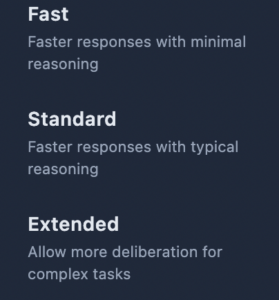
Reasoning Modes let you adjust how MagicGPT processes your request. Depending on the mode selected, the AI can perform quicker responses or more in-depth analysis before generating an output. Use this feature when you need either speed or more detailed reasoning.
Rate AI Responses

You can rate MagicGPT’s responses using the thumbs up or thumbs down buttons. Providing feedback helps improve the quality of responses over time and ensures the tool continues to meet your needs.