
The Task Manager allows you to create, update, and close tasks directly from MagicGPT, keeping Workspace tasks up-to-date without needing to switch between multiple tabs. This helps you stay organized and ensures all client tasks are tracked efficiently.
How to Use the Task Manager
Create a Task:
- Prompt MagicGPT with: *Create New Task [task name]*
- The tool confirms *Task Created*, and the task appears in Workspace Task Overview.

Update a Task:
- Prompt MagicGPT with: *Update Task [task name] to [status or change]*
- You can rename the task, update its status, priority, due date, or any other details as needed.

Close a Task:
- Prompt MagicGPT with: *Close Task [task name]*
- For recurring tasks, completing it automatically generates a new task with the same title for a future date.

Prerequisites
Before using the Task Manager, make sure you:
- Are logged in to Workspace
- Are clocked in to your client.
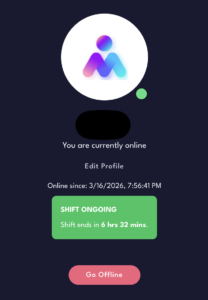
Following these prerequisites ensures MagicGPT can access the correct data and properly create, update, or close tasks.