MagicGPT helps you work more efficiently by remembering client-specific details and preferences. It fetches information from Workspace and your MagicGPT Chat History, so whenever you send a prompt, it first checks its Memory for saved preferences or relevant details. This allows MagicGPT to tailor responses and provide the most useful information for your request.
What Preferences Can You Save
You can save a wide range of client preferences, including:
- Writing style: concise, formal, friendly
- Scheduling preferences: time zones, availability
- Travel preferences: airlines, seat type, direct flights
- Food preferences: allergies, restaurant choices, order specifics
- Tool choices: Trello, Notion, Google Docs, and more
📍 Saving these preferences ensures consistency and efficiency in your interactions and outputs.
How to Save Preferences
There are two (2) ways to save client preferences:
Option 1: Save via MagicGPT Chat
- State the preference clearly in MagicGPT chat and request it to be saved. Examples:
- “My client prefers concise emails — please remember this.”
- “Save this: My client likes direct flights whenever possible.”
- “My client prefers scheduling in PT. Please remember.”
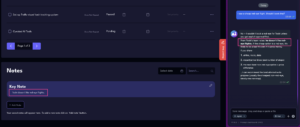
Option 2: Save via Workspace Notes
- In Workspace, scroll down to the Notes section.
- Click the ✎ icon or + Add Note.
- Enter the client’s preferences and save.
This method is useful if you want the preferences stored directly in the client’s Workspace record for easy reference.
Prerequisites
Before using MagicGPT to save or retrieve preferences, make sure you are logged in to Workspace and clocked in to your client. Following these steps ensures that MagicGPT can access the correct data and properly save or retrieve preferences.