
The End of Day (EOD) Report summarizes the tasks you worked on throughout the day. It helps show completed and ongoing work, provides visibility to your client or team, and maintains a daily work log in MEA. EOD reports pull information directly from your Workspace Tasks, so keeping your tasks updated is essential for accurate reporting.
Managing Tasks
EOD reports rely on properly created and updated tasks in Workspace. Make sure your tasks have accurate statuses, dates, and details so the report reflects the correct information. Task statuses include In Progress, Pending, Paused, Completed, Canceled, and In Review. For recurring tasks, completing a task will automatically generate a new one with the same title for a future date, and it will reappear in your task list.
How to Use in MagicGPT
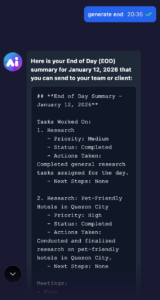 MagicGPT can generate a concise, ready-to-review EOD report based on your Workspace activity. Simply prompt MagicGPT to create your EOD report, review the generated output, and refine it as needed. Once finalized, you can copy the report and share it with your client or team.
How to Use in Workspace
To generate your EOD report directly in Workspace, go to Task Overview, click Reports, and select Generate EOD Report. Choose your session or date range, then click Continue. You’ll be able to edit the report details before publishing, including adding task notes (such as outcomes, progress, blockers, or metrics), highlighting important or urgent action items, and including additional information like meeting summaries or follow-ups. You can also document any challenges under Support & Issues, and use the Internal Section (visible only to your Account Lead) for internal notes or escalations.
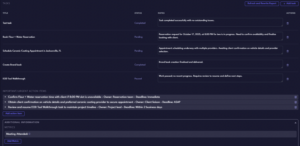
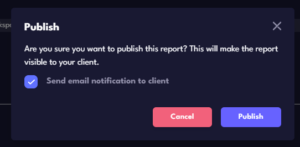
Once you’ve reviewed and updated all sections, click Regenerate to refresh the report if needed, then click Publish to finalize it.

After publishing, you’ll have the option to send the EOD report directly to your client’s email.
Prerequisites
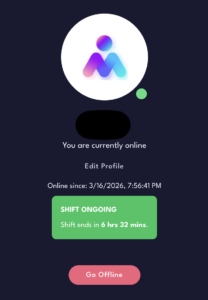
Before generating an EOD report, make sure you are logged in to Workspace and clocked in to your client. This ensures that your activity is properly tracked and reflected in the report.